Before you send an email newsletter to the contacts stored in your Yahoo address book, you need to export the contacts from your Yahoo account to a common CSV file and import them into your email marketing software. To export Yahoo contacts to a CSV…
How to Send Emails to Your MSN/Hotmail Contacts
Before you send an email newsletter to the contacts stored in your Hotmail contact list, you need to export the contacts from your Hotmail account to a common CSV file and import them into your email marketing software.
To export Hotmail contacts to a CSV file:
Login to your Hotmail account.
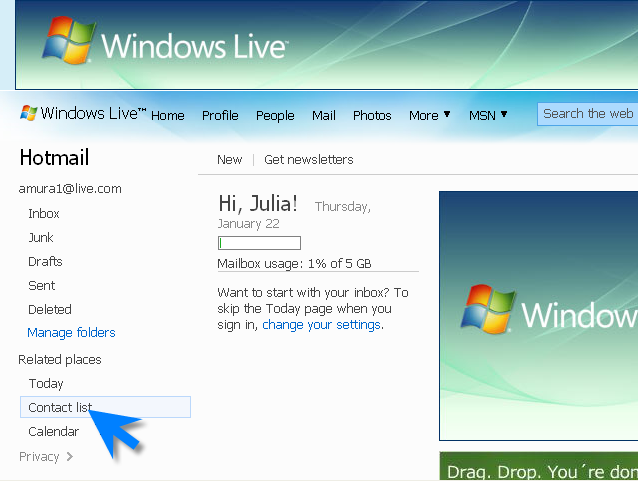
Click on the Contact List at the left side.
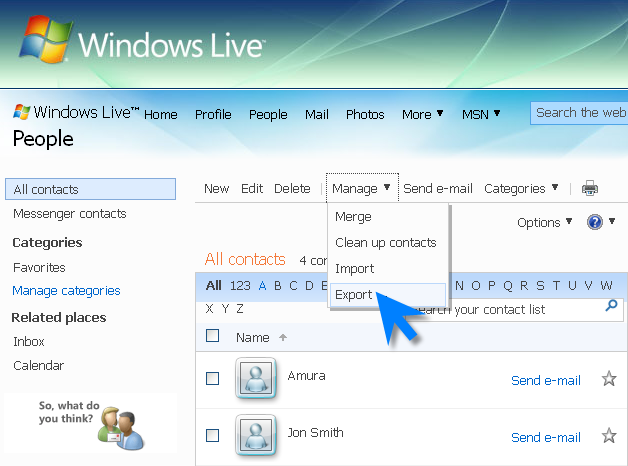
Click on Manage -> Export
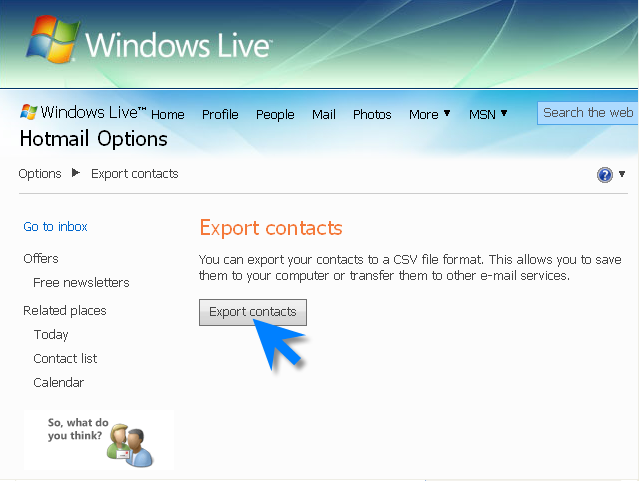
Click on Export contacts button.
This will open a new window asking you either to open or save the file.
Click Save File.
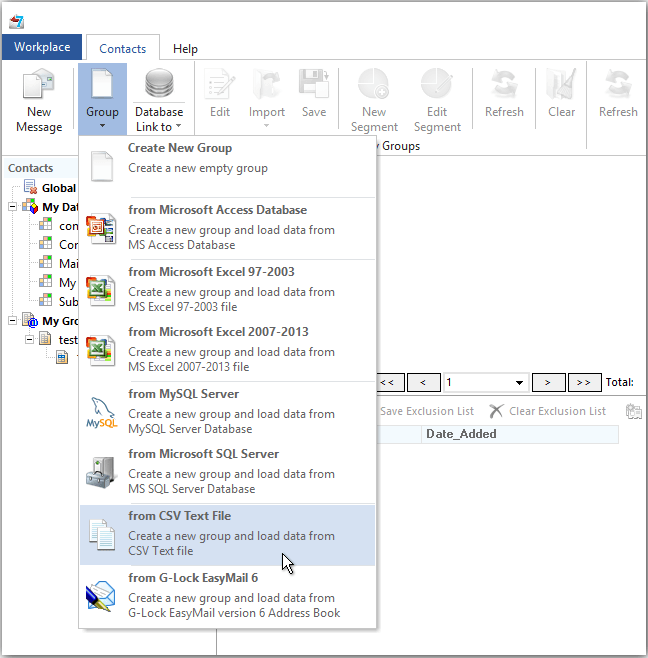
When the contacts are exported, you can create a contact group directly from your file in EasyMail7 and start sending email newsletters to your Gmail contacts.
Tags: contact list, csv file, email marketing software, email newsletter, hotmail account