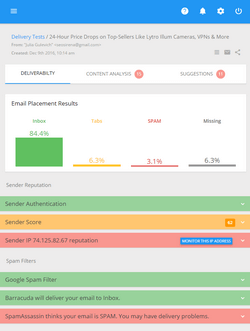
You can send marketing emails directly from your computer using EasyMail7 email newsletter system without expensive monthly payments for email service providers. Just follow these simple steps: 1. Download and install EasyMail7 2. Create an Outgoing Mail Account in EasyMail7 and enter your sender information…
How to Send Emails to Your Gmail Contacts
Before you can send an email newsletter to the contacts stored in your Gmail address book, you need to export the contacts from your Gmail account to a common CSV file first and import them into your email marketing software.
Here is how you can export Gmail contacts to a CSV file:
Login to your Gmail account
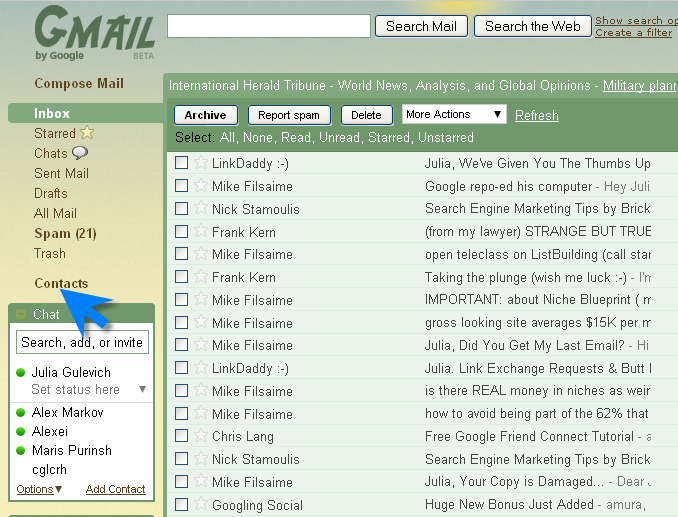
Click on Contacts at the left side
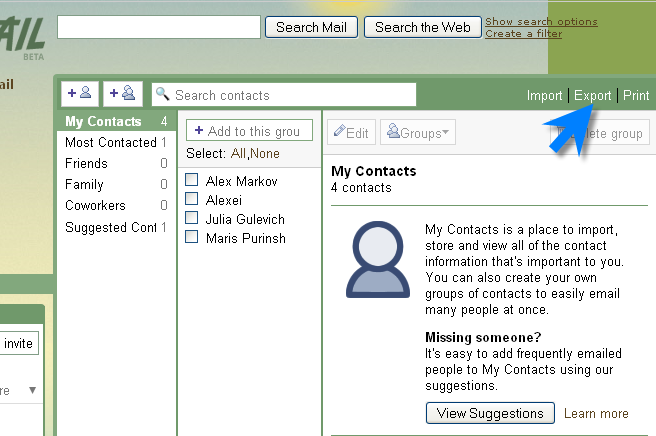
Click on Export
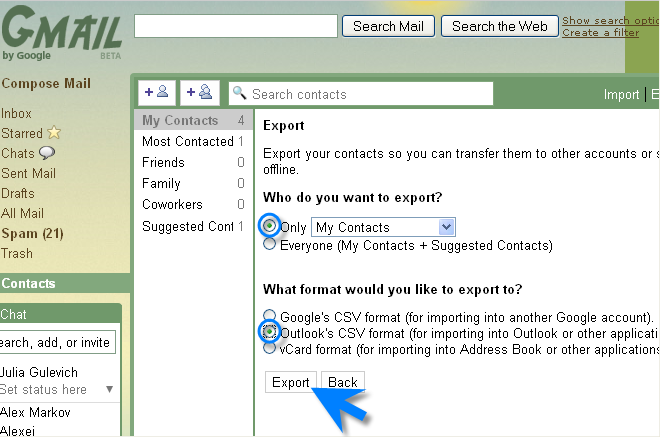
Select the contacts you want to export
Select the file format – Outlook’s CSV format
Click on Export
This will open a new window asking you either to open or save the file.
Click Save File.
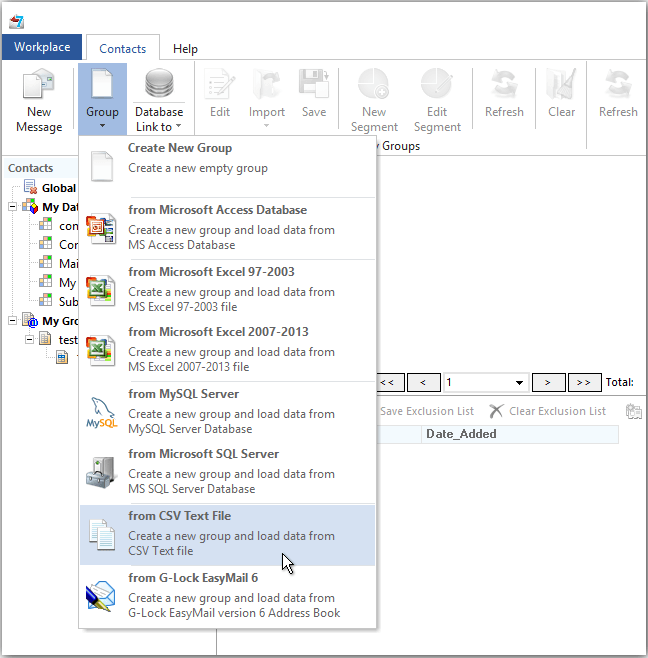
When the contacts are exported, you can create a contact group directly from your file in EasyMail7 and start sending email newsletters to your Gmail contacts.
Tags: contact list, csv file, csv format, email marketing software, email newsletter, gmail account